-
Shop
- Advanced Technologies
- AI Skills Mastery 2026 Collection
- Apple Accessories
- Arts, Crafts & Hobbies
- Best-Sellers
- Calvin Klein
- Car Accessories
- Christmas Collection
- Dating & Social Skills
- Denim
- 7FOR
- AGOLDE
- Antony Morato
- Armani Exchange
- Boss
- Brunello Cucinelli
- Calvin Klein Jeans
- Costume National
- Desigual
- Diesel
- Dolce & Gabbana
- Dsquared²
- Ermanno Scervino
- Fendi
- Gianni Lupo
- Guess Jeans
- Ichi
- Just Cavalli
- Lee
- Levi's
- Liu Jo
- Morgan De Toi
- Mother Denim
- Only
- Pepe Jeans
- Pinko
- Replay
- Tommy Hilfiger Jeans
- Valentino
- Vero Moda
- Digital Resources
- Car Buying & Ownership
- Cozy Feast Collection
- Emotional Intelligence
- Financial Education
- Home Styling & Organization
- Mindfulness
- Mindset
- Parenting & Child Development
- Pet Lifestyle & Wellness
- Positive Thinking
- Productivity
- Self Confidence
- Sleep Improvement
- Stress Management & Relaxation
- Travel Planning
- Yoga & Fitness
- Yoga & Mind-Body Practices
- Education & Learning
- Family & Parenting
- Fashion
- Accessories
- Alexander McQueen
- Bags
- Bags & Wallets
- Balenciaga
- Belts
- Blazers
- Blouses & Shirts
- Bottega Veneta
- Bottoms
- Brunello Cucinelli
- Burberry
- Chanel
- Chloé
- Dior
- Dolce & Gabbana
- Dresses
- Etro
- Gucci
- Hats & Hair Accessories
- Hoodies & Sweatshirts
- Jacquemus
- Jewelry
- Jil Sander
- Jimmy Choo
- Kiton
- Luggage
- Luggage Bags
- Men's Fashion
- Miu Miu
- Off-White
- Outerwear
- Prada
- Rick Owens
- Saint Laurent
- Skirts
- Socks & Tights
- Sunglasses
- Sweaters & Cardigans
- The Row
- Tom Ford
- Tops & Shirts
- Valentino Garavani
- Versace
- Vivienne Westwood
- Watches
- Fashion Accessories
- Furniture
- Gadgets
- Health & Beauty
- Health & Wellness
- Home & Garden
- Home Supplies
- Kids & Babies
- Lighting
- Patio, Lawn & Garden
- Personal Growth
- Pet Care
- Pet Supplies
- Pets
- Shoes
- Sport & Outdoors
- Super Deals
- Thanksgiving Digital Collection
- AI & Tech-Enhanced Thanksgiving
- Budgeting & Smart Shopping
- Eco-Friendly & Sustainable Thanksgiving
- Family & Kids
- Gift Ideas Guides
- Gratitude & Mindfulness
- History & Meaning
- Hosting & Planning
- Leftovers & Storage
- Pets & Thanksgiving
- Social Media Captions & Ideas
- Thanksgiving DIY Ideas
- Thanksgiving Recipes
- Thanksgiving Products
- Travel
- Wealth
- Wealth Building
- Budgeting & Saving
- Cryptocurrency Investing
- Debt Management
- Entrepreneurship & Business Growth
- Family Finance & Budgeting
- Financial Independence
- Financial Mindset & Psychology
- Financial Planning
- Frugal Living & Expense Hacks
- Goal Setting
- High-Income Skills
- Investing Basics
- Leadership
- Motivation
- Networking & Mentorship
- Passive Income Strategies
- Real Estate Investing
- Side Hustles
- Stock Market Investing
- YouTube Shorts Best-Sellers
USB/XLR Dynamic Mic: Gain, Monitoring & One‑Touch Mute
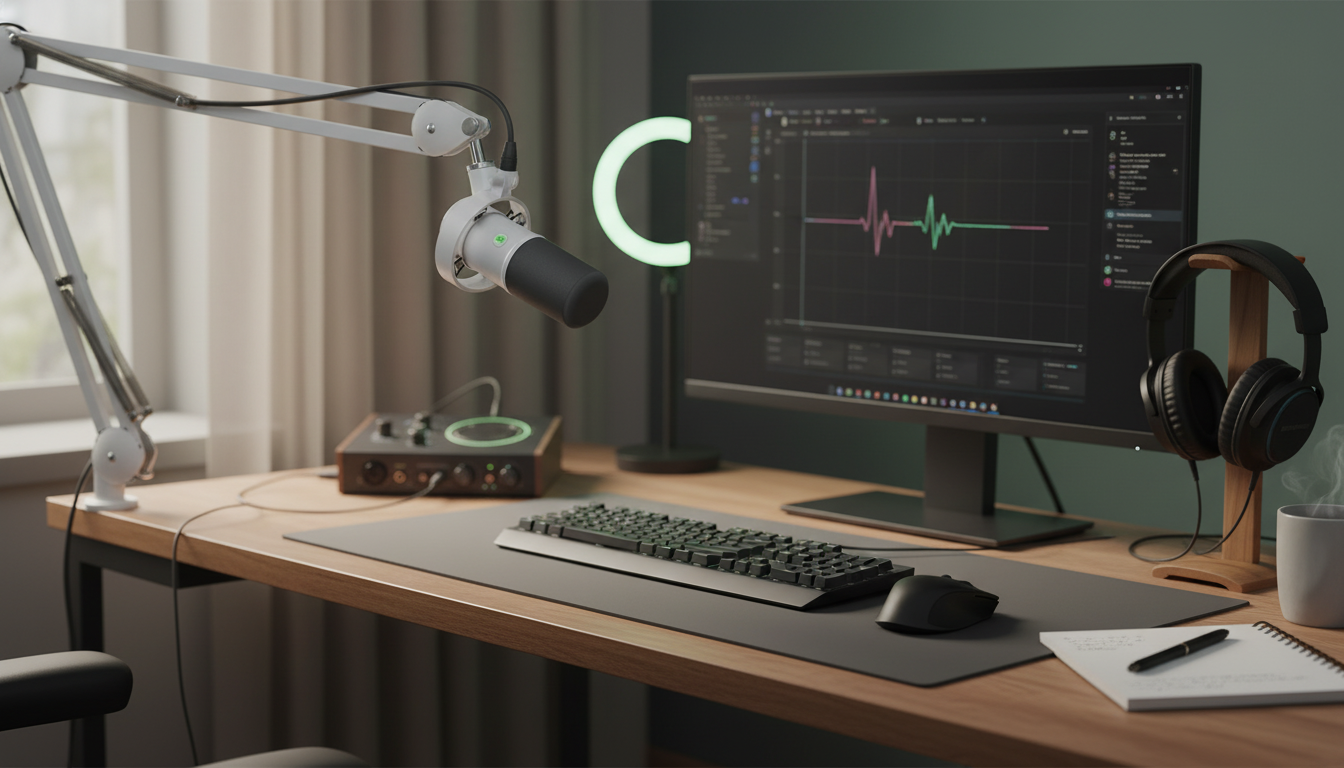
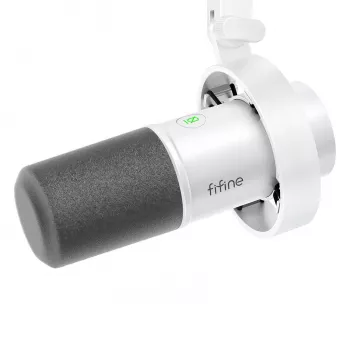
USB/XLR Dynamic Microphone with Gain Control, Real-Time Monitoring & Mute
A dynamic microphone that supports both USB and XLR can simplify your setup today while keeping the door open for upgrades later. Over USB, it’s a fast plug-and-play option for a laptop or desktop. Over XLR, it can slot into an audio interface or mixer when you want more routing control, multiple inputs, or a more expandable recording chain. Add onboard gain control, a headphone jack for real-time monitoring, and a one-touch mute button, and you get a workflow that fits streaming, voice chat, podcasts, and voiceovers—especially when you need clear speech and quick, tactile control. For more guidance, see Podcasting Microphones Mega-Review – Marco.org.
What this microphone is best suited for
- Live streaming and gaming: quick mute and direct monitoring help manage chat, alerts, and unexpected background noise.
- Podcasting and interviews: dynamic capsules often handle untreated rooms better than many condensers, helping keep the focus on the voice.
- Voiceovers and online meetings: onboard gain makes it quicker to set levels without digging through software menus.
- Hybrid workflows: USB for travel and simplicity, XLR for an interface/mixer when you’re ready to expand.
Dynamic microphones are commonly chosen for spoken-word work because they’re built to take loud sources and tend to emphasize the voice more than the space around it. For a helpful overview of how dynamic and condenser designs differ in everyday use, see Shure’s guide to dynamic vs. condenser microphones. For further reading, see Shure MV7 – Transom.
Key controls and why they matter
- Gain control: adjusts input level at the mic, helping avoid whisper-quiet tracks or distorted peaks.
- Real-time monitoring: headphone monitoring helps catch clipping, plosives, or room noise immediately, before you record a full take.
- Mute button: practical for coughs, side conversations, keyboard noise, or privacy during calls.
- Dynamic pickup behavior: often more forgiving with reflective rooms than many condensers, as long as you keep the mic close and gain reasonable.
Common scenarios and the control to reach for
| Situation | What you’ll hear | Fast fix |
|---|---|---|
| Voice sounds distorted | Harsh, crunchy peaks on loud words | Lower mic gain; increase distance slightly; speak across the mic rather than directly into it |
| Voice is too quiet | Low level even with normal speech | Increase gain; move closer; verify OS/app input level is not turned down |
| Delay/echo in headphones | Distracting latency | Use the mic’s direct monitoring (if available) instead of software monitoring |
| Background noise during stream | Keyboard/fan noise between sentences | Use mute when not speaking; consider a noise gate in software; reposition mic closer to mouth |
USB vs XLR: choosing the right connection for the day
- USB connection: the quickest path to recording on a computer—ideal for travel, simple setups, classes, and meetings.
- XLR connection: pairs with an interface or mixer for expanded control, multiple mics, and flexible routing.
- Upgradability: starting on USB and later moving to XLR can protect the mic investment when your workflow grows.
- Practical note: when using XLR, gain is typically controlled at the interface/mixer rather than at the mic.
If you’re deciding how to position the mic once it’s connected, placement and angle matter as much as the connection type. For a solid primer on polar patterns and practical placement, review Audio-Technica’s microphone basics.
Setup checklist for clear speech
- Placement: position the mic about 2–6 inches from your mouth for stronger voice level and less room sound.
- Angle: speak slightly off-axis (aim your voice just past the capsule) to reduce plosives (“p” and “b” bursts) and mouth noise.
- Monitoring: wear closed-back headphones if possible to prevent audio bleed back into the microphone.
- Leveling: set gain so normal speech peaks stay below clipping; avoid “red” indicators in your recording/streaming software.
- Mute habits: mute when stepping away; unmute before speaking to avoid missed lines.
Real-world tips for streaming, podcasts, and calls
What to look for before buying (quick spec check)
Buying checklist at a glance
| Feature | Why it matters | Good fit for |
|---|---|---|
| USB + XLR outputs | Works with computers now and pro gear later | Creators who plan to upgrade over time |
| Onboard gain control | Fast level adjustment without hunting in settings | Streaming, voice chat, quick recording sessions |
| Real-time headphone monitoring | Immediate feedback; reduces retakes | Podcasts, voiceover, live content |
| One-touch mute | Instant privacy and noise control | Meetings, streaming, shared spaces |
Product options in stock
- USB/XLR Dynamic Microphone with Gain Control, Real-Time Monitoring & Mute ($72.51) — a single mic option designed for both plug-and-play USB use and XLR expansion, with hands-on controls for faster workflow.
- Wireless WiFi 4G Home Alarm System with Touchscreen and Long-Life Sensors ($156.01) — a practical add-on for securing a home office or studio space where you store recording gear.
FAQ
Does real-time monitoring eliminate latency?
Direct monitoring through the microphone’s headphone output is effectively latency-free because you’re hearing the signal before it makes a round trip through the computer. Software monitoring can introduce delay depending on your app and buffer settings.
Can the USB and XLR connections be used at the same time?
Many microphones are designed to use one connection at a time, not both simultaneously. Check the product’s documented behavior, since dual routing can create noise, level mismatches, or confusing audio paths if it isn’t explicitly supported.
Will a dynamic mic help reduce background noise in an untreated room?
Dynamic mics often capture less room sound than many condensers, but placement and gain are still critical. Keep the mic close to your mouth and avoid excessive gain to minimize background noise.
Recommended for you


Was this article helpful?
Yes
No








Leave a comment