-
Shop
- Advanced Technologies
- AI Skills Mastery 2026 Collection
- Apple Accessories
- Arts, Crafts & Hobbies
- Best-Sellers
- Calvin Klein
- Car Accessories
- Christmas Collection
- Dating & Social Skills
- Denim
- 7FOR
- AGOLDE
- Antony Morato
- Armani Exchange
- Boss
- Brunello Cucinelli
- Calvin Klein Jeans
- Costume National
- Desigual
- Diesel
- Dolce & Gabbana
- Dsquared²
- Ermanno Scervino
- Fendi
- Gianni Lupo
- Guess Jeans
- Ichi
- Just Cavalli
- Lee
- Levi's
- Liu Jo
- Morgan De Toi
- Mother Denim
- Only
- Pepe Jeans
- Pinko
- Replay
- Tommy Hilfiger Jeans
- Valentino
- Vero Moda
- Digital Resources
- Car Buying & Ownership
- Cozy Feast Collection
- Emotional Intelligence
- Financial Education
- Home Styling & Organization
- Mindfulness
- Mindset
- Parenting & Child Development
- Pet Lifestyle & Wellness
- Positive Thinking
- Productivity
- Self Confidence
- Sleep Improvement
- Stress Management & Relaxation
- Travel Planning
- Yoga & Fitness
- Yoga & Mind-Body Practices
- Education & Learning
- Family & Parenting
- Fashion
- Accessories
- Alexander McQueen
- Bags
- Bags & Wallets
- Balenciaga
- Belts
- Blazers
- Blouses & Shirts
- Bottega Veneta
- Bottoms
- Brunello Cucinelli
- Burberry
- Chanel
- Chloé
- Dior
- Dolce & Gabbana
- Dresses
- Etro
- Gucci
- Hats & Hair Accessories
- Hoodies & Sweatshirts
- Jacquemus
- Jewelry
- Jil Sander
- Jimmy Choo
- Kiton
- Luggage
- Luggage Bags
- Men's Fashion
- Miu Miu
- Off-White
- Outerwear
- Prada
- Rick Owens
- Saint Laurent
- Skirts
- Socks & Tights
- Sunglasses
- Sweaters & Cardigans
- The Row
- Tom Ford
- Tops & Shirts
- Valentino Garavani
- Versace
- Vivienne Westwood
- Watches
- Fashion Accessories
- Furniture
- Gadgets
- Health & Beauty
- Health & Wellness
- Home & Garden
- Home Supplies
- Kids & Babies
- Lighting
- Patio, Lawn & Garden
- Personal Growth
- Pet Care
- Pet Supplies
- Pets
- Shoes
- Sport & Outdoors
- Super Deals
- Thanksgiving Digital Collection
- AI & Tech-Enhanced Thanksgiving
- Budgeting & Smart Shopping
- Eco-Friendly & Sustainable Thanksgiving
- Family & Kids
- Gift Ideas Guides
- Gratitude & Mindfulness
- History & Meaning
- Hosting & Planning
- Leftovers & Storage
- Pets & Thanksgiving
- Social Media Captions & Ideas
- Thanksgiving DIY Ideas
- Thanksgiving Recipes
- Thanksgiving Products
- Travel
- Wealth
- Wealth Building
- Budgeting & Saving
- Cryptocurrency Investing
- Debt Management
- Entrepreneurship & Business Growth
- Family Finance & Budgeting
- Financial Independence
- Financial Mindset & Psychology
- Financial Planning
- Frugal Living & Expense Hacks
- Goal Setting
- High-Income Skills
- Investing Basics
- Leadership
- Motivation
- Networking & Mentorship
- Passive Income Strategies
- Real Estate Investing
- Side Hustles
- Stock Market Investing
- YouTube Shorts Best-Sellers
iPad Trackpad Keyboard: Setup, Tips & Compatibility
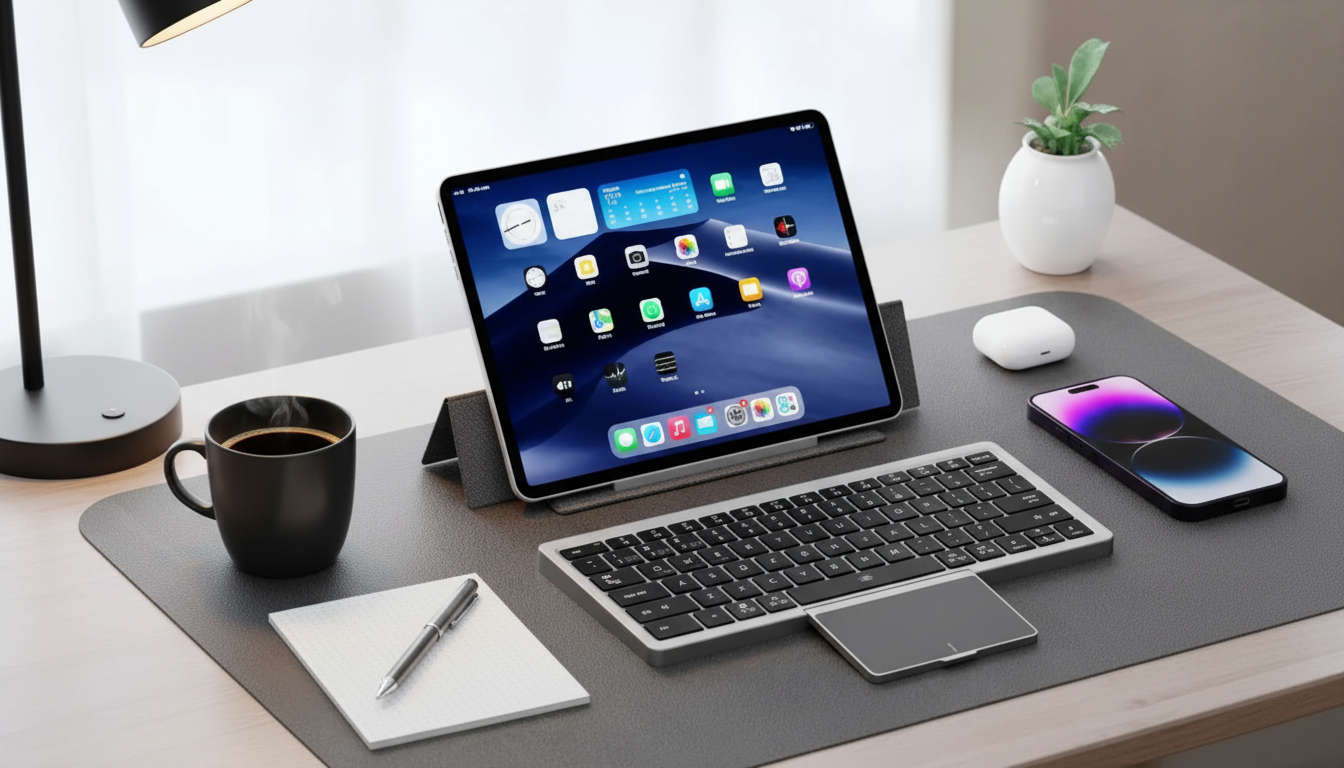
Magic Bluetooth Keyboard with Touch Pad for iPad Pro, iPad Air, and Tablets
A slim Bluetooth keyboard with a built-in touch pad can turn an iPad or tablet into a more laptop-like setup for writing, browsing, and light productivity—without giving up the flexibility of touch. The right model adds speed and precision for everyday tasks, while a smooth setup and a few small settings tweaks can make it feel far more “native” on iPadOS.
What This Keyboard Adds to an iPad or Tablet Setup
On-screen keyboards are fine for quick replies, but they can slow down longer writing sessions. A Bluetooth keyboard with an integrated touch pad changes how you work, especially when you’re jumping between apps, editing text, or managing multiple windows.
- Faster typing for real work: Useful for notes, emails, school assignments, and longer documents where a glass keyboard becomes tiring.
- Touch pad control: Pointer navigation helps with precise cursor placement, selecting text, and editing in apps that support pointer interactions.
- Easy-to-pack productivity: A travel-friendly alternative to carrying a laptop when your workflow is mostly writing, browsing, and light admin tasks.
- Flexible setup: Works at a desk or on the go when paired with a stand or case (if a stand isn’t built into the keyboard itself).
Compatibility and Setup Basics
Most Bluetooth keyboards pair the same way: enable pairing mode on the keyboard, then connect in your tablet’s Bluetooth menu. Where things vary is touch pad behavior—especially gestures—because each operating system handles pointer input a bit differently.
- Bluetooth pairing is typically done through the tablet’s Bluetooth settings menu.
- Best experience on iPadOS with trackpad support enabled and updated system software.
- May work with many Android tablets and other Bluetooth-capable devices, but gesture support and key mapping can vary by operating system.
- If the keyboard supports multi-device pairing, switching devices may require a dedicated key or a reconnection step in Bluetooth settings.
Compatibility and everyday expectations
| Device type | Typing | Touch pad cursor | Gestures/shortcuts | Notes |
|---|---|---|---|---|
| iPad Pro / iPad Air (iPadOS) | Yes | Yes | Often supported | Best overall trackpad experience on iPadOS |
| Other iPads (iPadOS) | Yes | Yes | Often supported | Older models may have fewer gesture options depending on iPadOS version |
| Android tablets | Yes | Usually | Varies | Some keys/gestures may map differently by brand and Android version |
| Windows devices | Yes | Usually | Varies | Key layout may differ from native Windows keyboards |
For official pairing steps and common connection tips, Apple’s guide is a solid reference: Apple Support: Pair a Bluetooth accessory with your iPhone, iPad, or iPod touch.
Design and Daily Use Highlights
Even when two keyboards look similar online, small design details can make one feel effortless and the other feel finicky. Focus on what you’ll notice every day: key spacing, touch pad comfort, and stability.
- Compact layout: Great for portability, but check spacing if you have larger hands or prefer full-size keys.
- Touch pad size matters: Larger touch pads usually feel better for dragging, selecting, and multitasking gestures.
- Stable base for lap use: A very light keyboard can shift on soft surfaces unless it’s paired with a sturdy stand or case.
- Clear status indicators: Power, pairing, and battery lights reduce “guessing games” when something won’t connect.
If you use a lot of app switching and text editing, learning a few iPad keyboard shortcuts can save time. Apple keeps a handy list here: Apple Support: Keyboard shortcuts for iPad.
Battery, Charging, and Connectivity Tips
Bluetooth keyboards tend to be reliable day-to-day, but intermittent lag or dropouts usually trace back to a handful of fixable causes: battery level, interference, or a “stuck” pairing record.
- Charge fully before first use: A full charge reduces early disconnects while the keyboard and tablet “settle in.”
- If pairing fails: Forget the device in Bluetooth settings, toggle Bluetooth off/on, then re-pair.
- Stay within close range: Performance can drop in crowded 2.4GHz environments (busy offices, airports, shared workspaces).
- If keystrokes lag: Temporarily disconnect other Bluetooth accessories (headphones, game controllers) to test for congestion.
For a quick overview of how Bluetooth works and why interference can happen, see: Bluetooth SIG: About Bluetooth Technology.
Using the Touch Pad Effectively on iPadOS
Common Fit Checks Before Buying
Product Snapshot: Magic Bluetooth Keyboard with Touch Pad
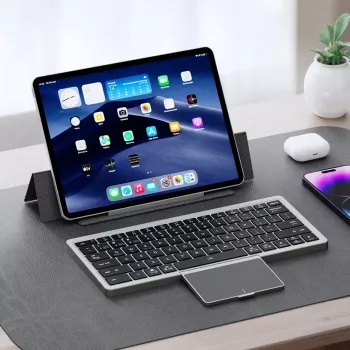
If your goal is portable typing plus cursor control, the Magic Bluetooth Keyboard with Touch Pad for iPad Pro, iPad Air, and Tablets is built for the workflow: quick messages, longer writing sessions, and precision edits where a trackpad is simply easier than finger taps.
Quick buying details
| Item | Details |
|---|---|
| Price | $50.51 USD |
| Availability | In stock |
| Product page | View product |
More In-Stock Finds
- Portable Camping Cooler Bag
- 6pcs Transparent Plastic Christmas Ball Ornaments
- Waking the Peaceful Giant: How to Motivate Enneagram 9s (Digital Guide)
FAQ
Does the touch pad work on iPad Pro and iPad Air?
Yes, iPadOS supports trackpads and pointer interactions, so a touch pad typically works for cursor movement and clicks. Results can vary by iPadOS version and the keyboard’s touch pad implementation, so it helps to enable trackpad settings and try gestures in apps that support pointer features.
How is it paired with an iPad or tablet?
Turn on the keyboard and put it in pairing mode, then go to Settings > Bluetooth on your iPad or tablet and select the keyboard from the list. If prompted, confirm the pairing code; if it won’t connect, forget the device in Bluetooth settings and re-pair.
What to do if typing lags or the connection drops?
Check battery level first, then keep the keyboard closer to the tablet and reduce nearby wireless interference. If the issue continues, toggle Bluetooth off and on, re-pair the keyboard, and temporarily disconnect other Bluetooth accessories to see if the connection stabilizes.
Recommended for you
Was this article helpful?
Yes
No








Leave a comment